
Ich habe Probleme, meinen Lebenslauf hochzuladen
Upload your resume to your profile by accessing the Lebenslauf section in your profile settings and dragging or clicking to add a PDF file under 5 MB.
This article guides you through uploading your resume (CV) to your profile. You'll learn how to access your profile settings and successfully upload a PDF version of your resume to complete your professional profile.

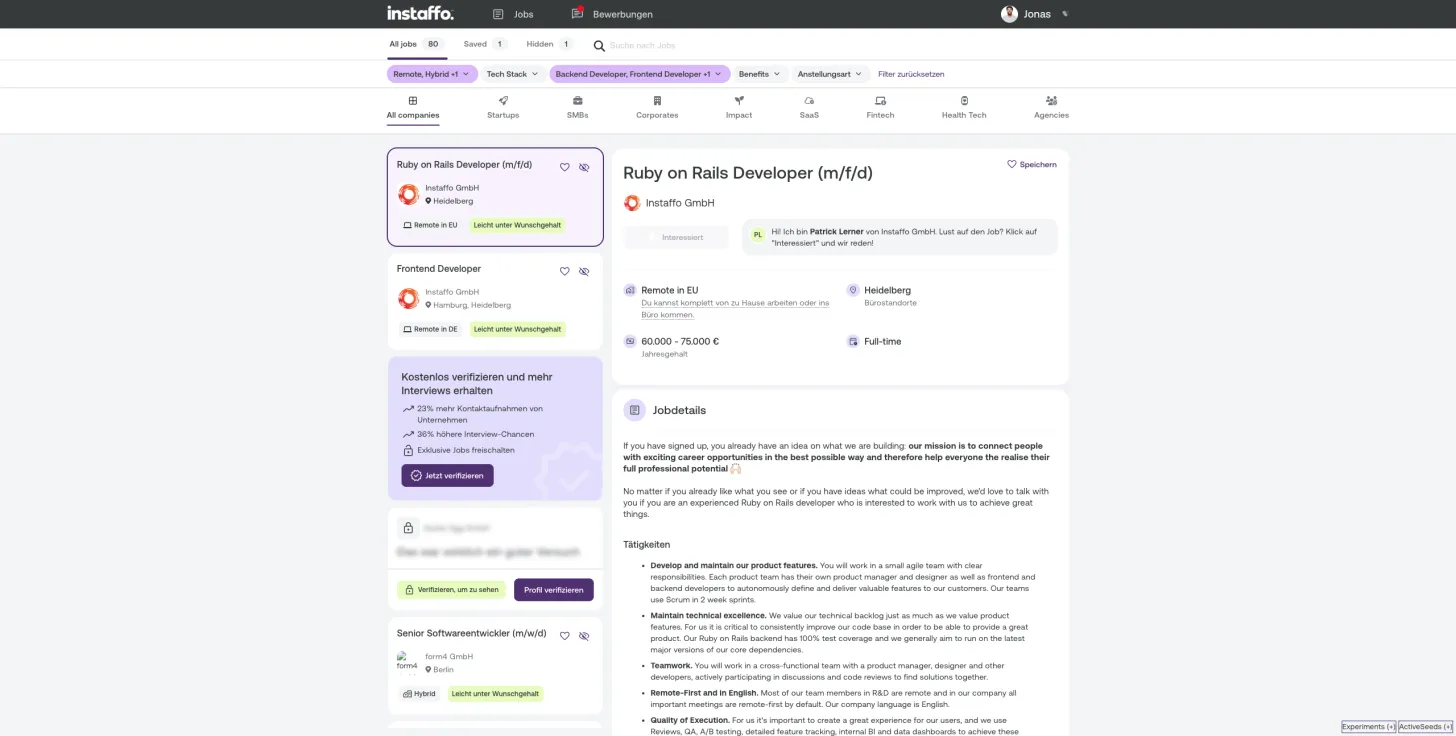
Accessing Your Profile
-
Navigate to your profile settings
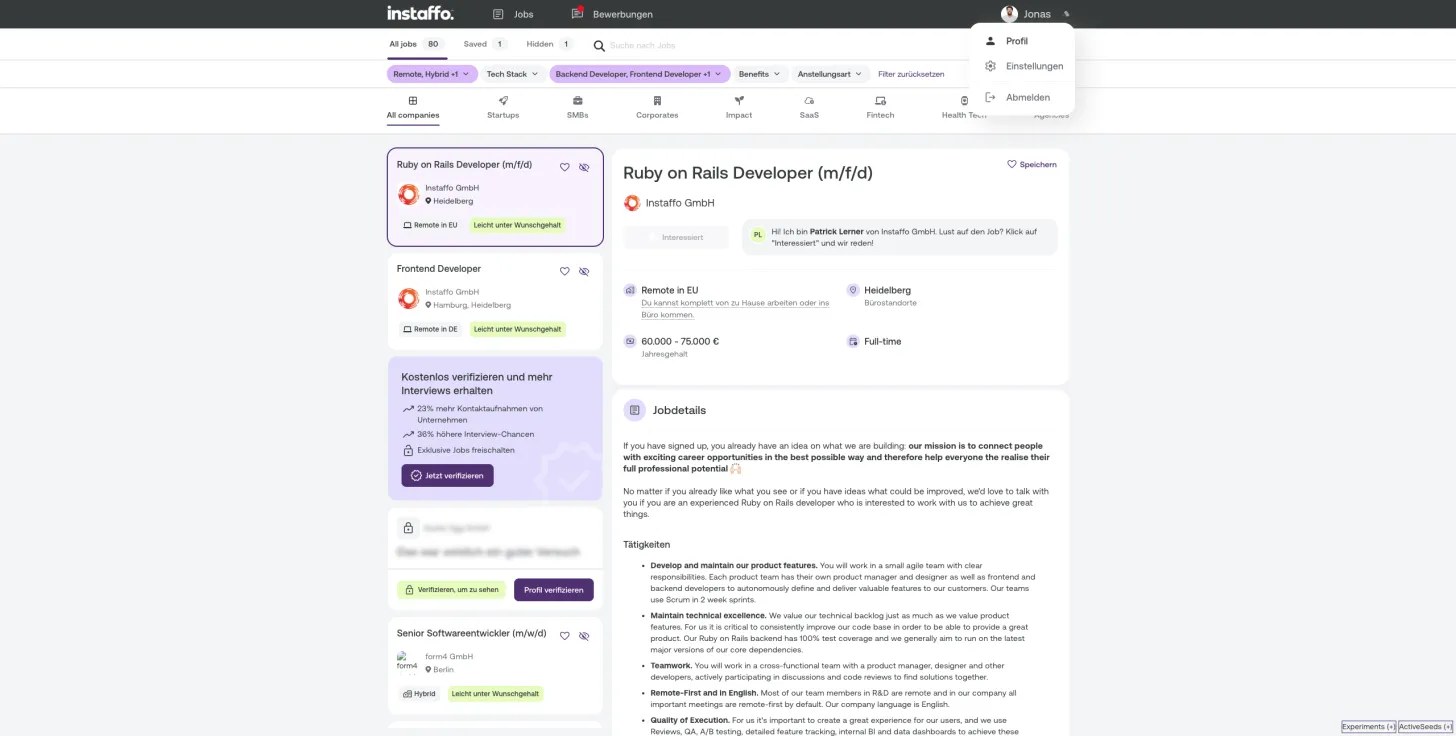
From any page on the platform, click on your profile icon in the top right corner of the screen. This will open a dropdown menu with several options. -
Select your profile from the menu
In the dropdown menu, click on "Profil" to access your profile page where you can manage your personal information and documents.
Uploading Your Resume
-
Locate the resume upload section
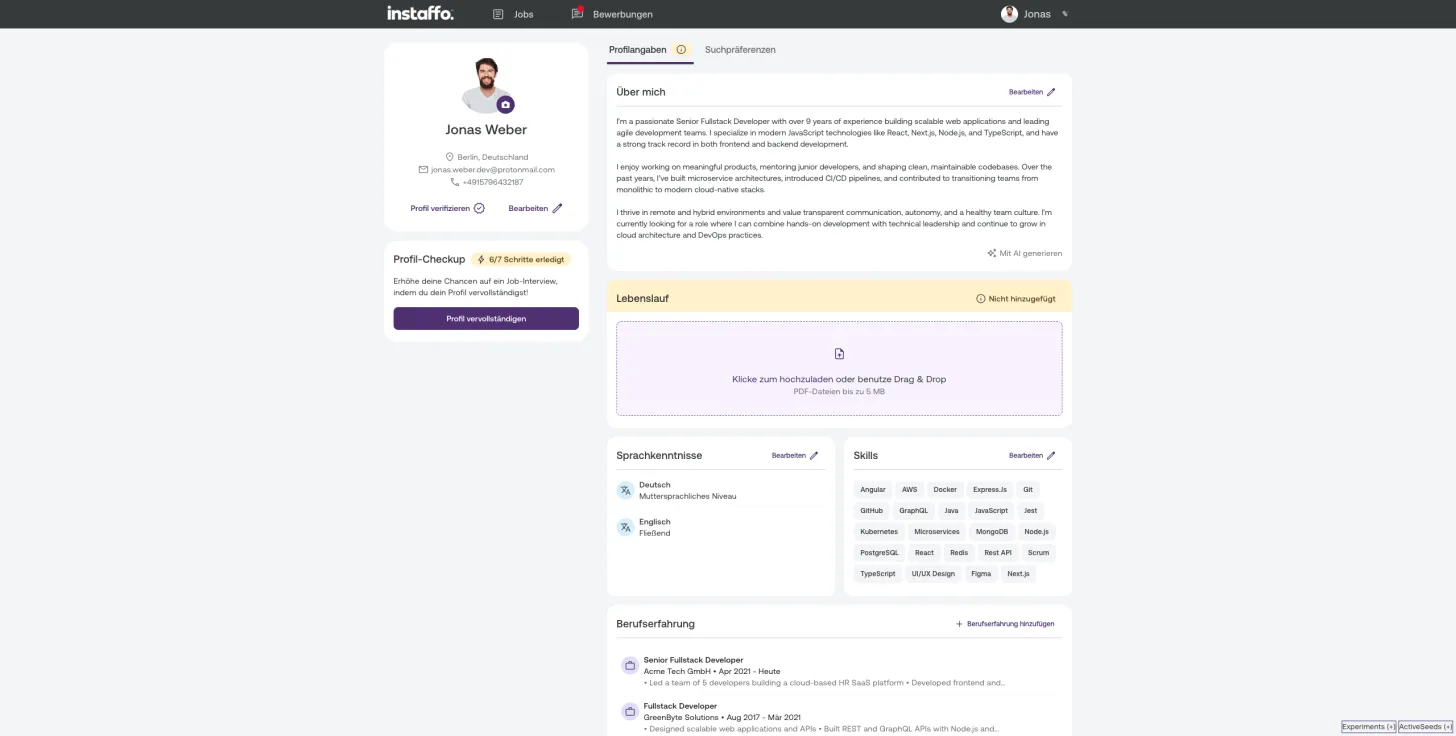
Once on your profile page, find the "Lebenslauf" (Resume) section. This area will have a dashed purple border indicating it's an upload zone. -
Upload your resume file
You have two options to upload your resume:- Click to upload: Click anywhere within the dashed border area that says "Klicke zum hochzuladen oder benutze Drag & Drop"
- Drag and drop: Simply drag your PDF file from your computer and drop it into the upload area
Make sure your resume is in PDF format and doesn't exceed 5 MB in file size.
-
Verify your upload
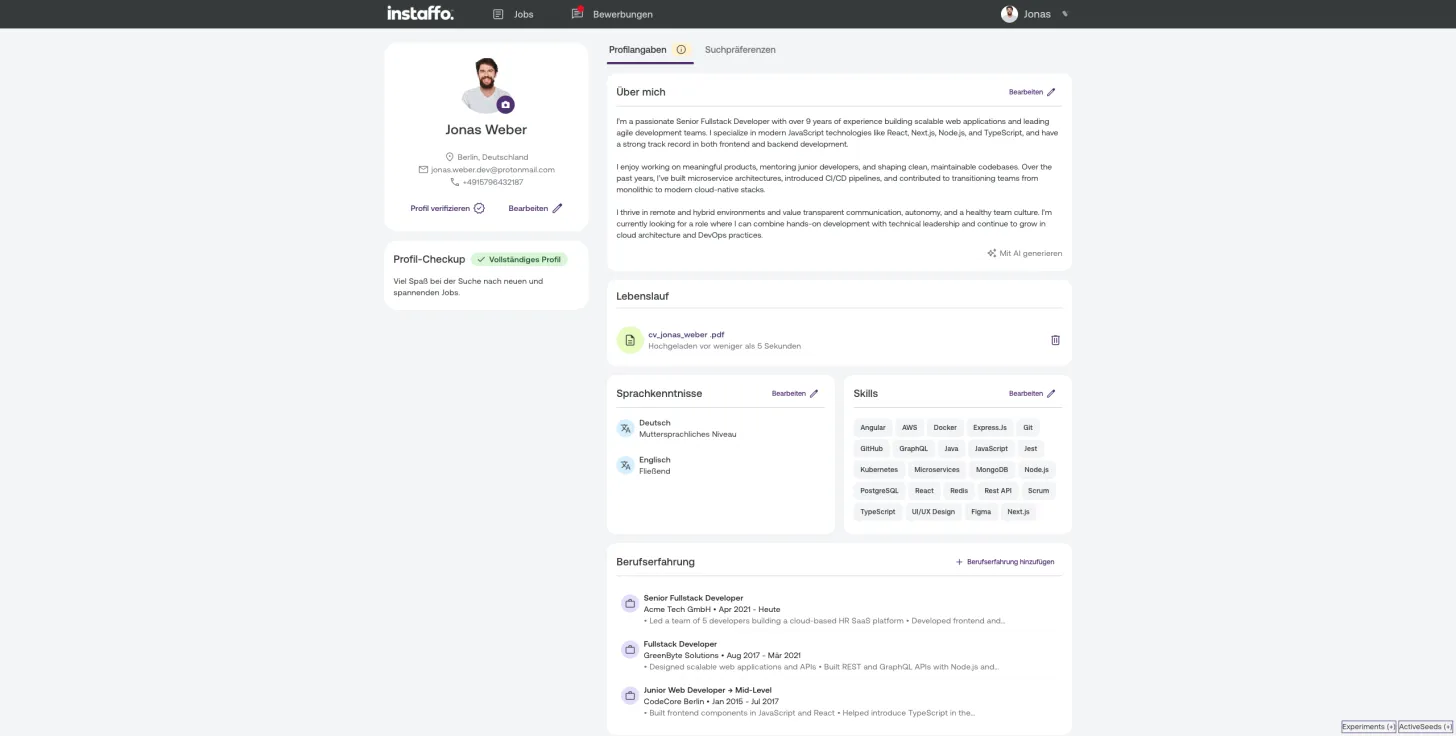
After uploading, you'll see your file name (for example, "cv_jonas_weber.pdf") appear in the resume section with a confirmation message showing when it was uploaded. The file name will be displayed as a clickable link, allowing you to view or download your resume at any time.
Your resume is now successfully uploaded to your profile. You can click on the file link to preview it or update it anytime by repeating these steps with a new file.
 Powered by happysupport.ai